
Is Your Gaming Mouse Accurate? Here’s How to Test It
New mouse day is the best day. Then you read the box. 50K sensor, 8,000Hz, “esports grade.” Sounds great. But does it hold up on your desk, on your pad, in your hand?
You do not need a lab to find out. A free click tester, a paint app and twenty minutes get you most of the way there. This is how we would check any mouse before it gets near ranked.
The Short Answer
Five checks. Do them in this order, since the early ones kill a mouse faster than the late ones.
- Clicks: Any double-fires or dead presses?
- Tracking: Does the cursor stay sane at slow speed and during a hard flick?
- DPI: Anywhere near what the box claims?
- Polling and wireless: Steady, or stuttery?
- Real play: Does it still feel good an hour in?
Quick Breakdown Table
| Test | What to look for | Time |
|---|---|---|
| Clicks | Double clicks, dead clicks | 3 min |
| Tracking | Jitter, jumps, shaky lines | 5 min |
| DPI | Close to the advertised number | 5 min |
| Polling and wireless | Steady rate, no dropouts | 5 min |
| Real play | Comfort, consistency | 15+ min |

Before You Start
Quick setup first, because a messy one gives you fake problems. Wipe the mouse and the pad. Gunk on the sensor window can look exactly like a tracking fault, and if you have never cleaned one properly, here’s how to clean a gaming mouse without wrecking it.
Pick one pad and stay on it. Switch surfaces halfway through and your comparison is garbage. Turn off Windows pointer precision too, because you want to test the mouse, not your settings. And update the firmware. New mice ship with old firmware more often than you would expect.
Keep a scrap of paper nearby. One line per test. You will forget everything otherwise.
Step 1: Test the Clicks
Start here. A mouse with bad clicks is a bad mouse. Does not matter how good the sensor is.
Open a free click tester and mash left click for ten seconds. Every press should count once. Then press, hold and let go, and make sure nothing fires a second time on release. After that, go through every button. Right click, wheel, the side buttons, all of it.
What you are hunting for is a double click, where one press shows up as two. Usually that’s a tired or badly tuned switch. To be fair, it can happen on a brand new mouse too. Our click latency and double-click guide explains why, and this one on debounce time covers the setting behind it.
Ever wonder why some clicks feel crisp and others feel like mush? That comes down to optical vs. mechanical switches.

Step 2: Test Tracking and Sensor Accuracy
Open a paint app, grab a thin brush, and draw slow circles. The line should come out smooth. If it’s jagged at low speed, the sensor might be struggling.
Now flick. Whip the mouse around like you’re snapping onto a head. The line has to keep up with your hand. If the cursor jumps or trails behind, that’s a bad sign. Then draw a freehand line. A good sensor follows your hand, wobble and all. If it quietly straightens things out for you, that’s angle snapping, and most players can’t stand it.
Watch for the cursor speeding up when you move faster, too. That’s mouse acceleration. No way you are controlling recoil with that going on. Not sure what kind of sensor you have got? Optical vs. laser clears it up.
One last check: lift the mouse just a hair. Does the cursor keep drifting? Some mice track too high off the pad, and it messes you up every time you reset your aim. The lift-off distance guide goes deeper.

Step 3: Check the DPI
Mice almost never hit their advertised DPI exactly. Slightly off is normal. Way off is not.
Here’s a dead simple check. Set the mouse to 800 DPI and slide it two inches along a ruler. A tester that shows counts should land near 1,600. If it’s way off, the DPI is off.
You do not need perfect numbers, just close ones. If DPI still feels fuzzy, this CPI explainer and this DPI one cover the basics. While you are at it, click through every DPI step. Each one should feel different, and none should jump around.
Step 4: Check Polling Rate and Wireless Stability
Polling rate is how often your mouse tells the PC where it is. 1,000Hz is normal. Some go to 4,000Hz or even 8,000Hz, and our polling rate explainer covers what those numbers mean.
Run a polling rate tester and wave the mouse around. The reading should sit close to your setting. If it dips or swings, something’s off. On a wireless mouse, test the connection as well. Move fast and watch for stutter. Walk it toward the edge of its range. Switch modes if there’s more than one. Then leave it idle, wake it up, and see how fast it reconnects.
Heads up, high polling eats battery. Our team saw it first hand, more on that below. And if you’re still stuck between cable and no cable, wired vs. wireless walks through the trade-offs.
Step 5: Test It in Real Play
Numbers only get you so far. This is where you find out if the mouse actually suits you.
Pick one aim trainer or one game you know inside out. Play the same routine for the same time, swap mice, then repeat. Don’t rush it. A mouse can feel strange on day one and great by day three.
Start with comfort. Relaxed after an hour, or cramping? Then weight. Does it feel quick, or is it fighting you? The weight guide explains how it changes control. Next comes grip fit, and if you are unsure how you hold a mouse, palm vs. claw vs. fingertip will sort that out. Finally, consistency. Do your flicks land the same way every time?
Play mostly shooters? Our FPS mouse picks show what’s worth looking for.
What We Saw, and What Buyers Say
Checks are one thing. Here’s what happened when our team ran real mice through this kind of testing, plus what owners keep telling us.
Here, these reviews are given.
Our team saw:
- Razer Viper V4 Pro: A week at 8K polling. The battery dropped faster than it does at lower rates, which is no surprise. Tracking and clicks stayed clean the whole time.
- Logitech G PRO X2 SUPERSTRIKE: We spent a few sessions in a tactical shooter, playing with the actuation point and haptic strength. Once those were set, quick repeated taps registered faster and more consistently.
- Logitech G PRO X SUPERLIGHT 2: This one went through a stretch of high-intensity competitive sessions. The connection never stumbled under fast, repeated flicks, and tracking stayed clean.
- SteelSeries Aerox 5 Wireless: To stress the button layout, we mapped out a full MMO ability rotation. Every input landed clean. Nothing dropped.
- Logitech G305 LIGHTSPEED: Battery was the question here, so we tracked real drain over several weeks of daily use. It stayed close to the 250-hour claim the whole way.
- Redragon M916 ULT: We used it for casual aim practice next to the Viper, just to see how close a cheaper 8K mouse could get. It held up fine for warm-ups and ranked.
What buyers say:
People coming from heavier mice often say a light one feels almost too light at first, then normal a day or two later. Click-focused players keep bringing up the haptics settings as the first thing they play with. Owners of long-battery mice talk about forgetting there’s a battery at all. The usual gripes? Build that matches a lower price, and software that takes some getting used to.
Where our team and buyers agree
Honestly, the pattern is pretty clear. Testers and buyers both describe an adjustment period, so give any mouse a few sessions. Battery claims come with fine print, since high polling drains it faster, and we saw that too. And clean clicks plus a steady connection are what people notice first.
What to Do With Your Results
No mouse has to ace every test. Weigh the results by what matters to you.
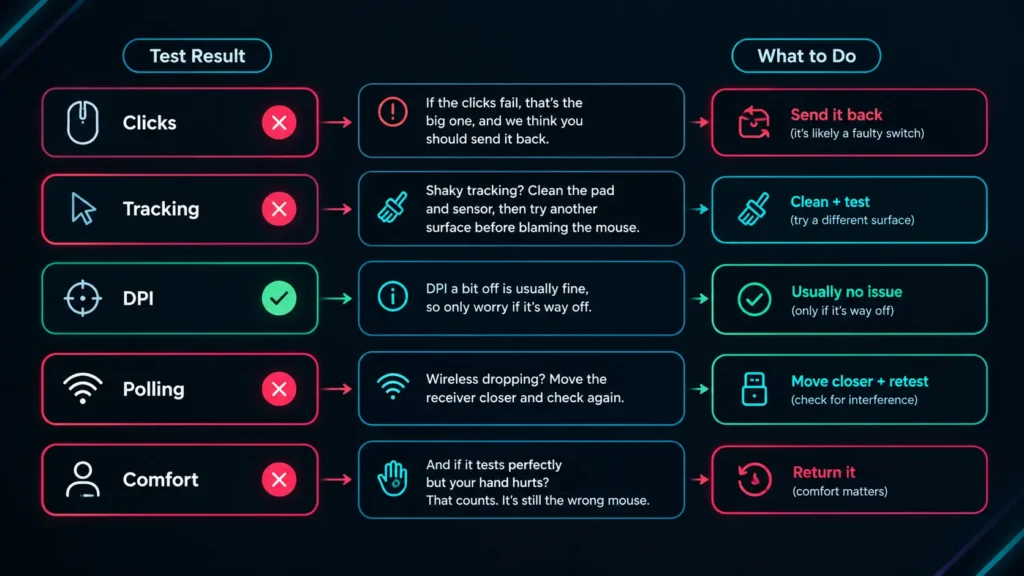
If the clicks fail, that’s the big one, and we think you should send it back. Shaky tracking? Clean the pad and sensor, then try another surface before blaming the mouse. DPI a bit off is usually fine, so only worry if it’s way off. Wireless dropping? Move the receiver closer and check again.
And if it tests perfectly but your hand hurts? That counts. It’s still the wrong mouse.
New to all this? What makes a good gaming mouse is a decent place to start. Still shopping? Try our beginner buying guide or how to choose the right gaming mouse. And if yours is getting old, how long a gaming mouse lasts can help you decide when to replace it.
Final Verdict
You do not need pricey tools to test a mouse. Clicks, tracking, DPI, polling and a few real sessions tell you almost everything.
Go in that order, jot quick notes, and give the mouse a few days before you decide. If it passes, great. If it does not, you will know exactly why.
Frequently Asked Questions (FAQs)
Everything on this page comes from our team’s own experience, along with feedback from Amazon buyers and other verified users. We try to be straight about what we have seen, but experiences differ, and something that felt great to us would not necessarily feel the same to you. Fit, feel and habits are personal, so treat our advice as a starting point, not a promise.
We also pay attention to what real owners keep saying, not just what a spec sheet promises. If something looks great on paper but users keep flagging the same issue, we will mention it.
2 Responses